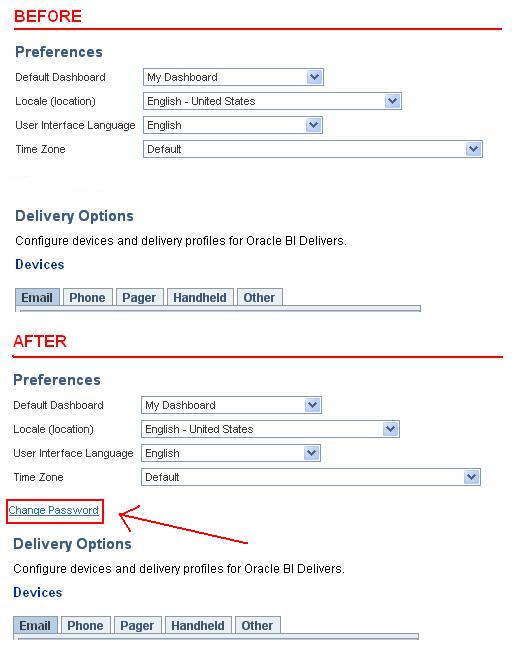
Follow the below steps to setup OBIEE 10g BI Publisher and integration with MS Office
Step 1- Open BI Publisher
From Server:
goto -> start -> all programs -> oracle business Intelligence -> BI Publisher
From workstation:
http://domainname.com:9704/xmlpserver/
login:
user = Administrator
pass = Administrator
(above password will be valid if no other password has been setup)

Step 2- Goto Admin tab -> select user from security center
Change the password of Administrator User if required.
Create user same as presentation server user. if user name is same as presentation server user then BI publisher will be linked to that user automatically. In our case UMIRZA is presentation server user.
user = umirza
pass = ******
Assign Required Roles:
select all roles for umirza user
Now UMIRZA user is linked with Presentation Server
Step 3- Connecting to Data source
Can choose either option (i) ot (ii)
i) Link Presentation Server to BI Publisher:
a) Open URL
http://domainname.com:9704/xmlpserver/
goto -> Admin -> Oracle BI Presentation Services

b) Update Data Source: Oracle BI EE
In BI Publisher
goto Admin > JDBC > Update Data Source: Oracle BI EE

ii) Link to a database: [For Read Only views]
connect to database and create user.
<script start>
CREATE USER bipub
IDENTIFIED BY bipub
DEFAULT TABLESPACE USERS
TEMPORARY TABLESPACE TEMP
PROFILE DEFAULT
ACCOUNT UNLOCK
/
GRANT READ_ONLY_ROLE TO bipub
/
GRANT UNLIMITED TABLESPACE TO bipub
/
ALTER USER bipub DEFAULT ROLE ALL
/
GRANT CREATE SESSION TO bipub
/
GRANT CREATE TABLE to bipub
/
<script end>
Goto Admin > JDBC > Add Data Source
Data Source Name = MyDataSource
*Connection String = jdbc:oracle:thin:@server:port:sid
For example
Connection String = jdbc:oracle:thin:@dbhostname:1523:mysid
Connection String = jdbc:oracle:thin:@(DESCRIPTION =
(ADDRESS = (PROTOCOL = TCP)(HOST = dbhostname)(PORT = 1523))
(CONNECT_DATA =
(SERVICE_NAME = mysid)
)
)
* Username = bipub
* Password = bipub
* Database Driver Class = oracle.jdbc.driver.OracleDriver

Step 4- Oracle BI Publisher Desktop Setup
*Need to download Template Builder
For that Open Presentation Server and login using UMIRZA
Goto -> Products -> BI Publisher
then Goto Reports > My Folders
Click on "Template Builder" for download "BIPublisherDesktop.exe" and save it on local machine

Run "BIPublisherDesktop.exe" with Admin privs
Possible Errors:
Setup could not find Microsoft .NET Framework 2.0 on your machine.
BI Publisher Desktop will not run and setup cannot continue without this component installed.
Goto: http://www.microsoft.com/download/en/details.aspx?displaylang=en&id=25150
Download "dotnetfx35.exe"
I have downloaded it and placed at [D:\Sequel - Work\BI\Deployment\BI Publisher\dotnetfx35_SP1.exe]
Run "dotnetfx35.exe" and install "Microsoft .NET Framework"
Restart Computer.
While Log-On into MS Word Publisher Addin, you may encounter following errors:
1) "ActiveX - Runtime Error 429"
to get rid of it
remove and reinstall dotnetfiles using setup.exe
located at <C:\Program Files (x86)\Oracle\BI Publisher\BI Publisher Desktop\DotNetInstallFiles>
2) Oracle BI Server is incompatible with Office 2010 and can give error
The window error is:
"There was an error '-2147467261 (80004003)' at runtime: Object reference not set to an instance of an object."
OR
"There was an error at runtime: Access is denied"
You can get rid of it in an unofficial way:
In all windows user profiles, rename *.exd files to *.exd_bak and restart MS Word.
3) Msg "Please enter the correct address for your report server. If you don't know the address please contact your IT department"
Step 5- Download Sample RTF file "category_sales_and_profits.rtf"
Goto http://www.oracle.com/webfolder/technetwork/tutorials/obe/fmw/bi/biee/r1013/bipub/bip_biee/Category%20Sales%20and%20Profits.rtf
Save the file.
Step 6- Testing BI Publisher Desktop
Open MS Word
Goto Add-Ins > Oracle BI Publisher > Log On
Enter following credentials
user = umirza
pass = ******
Report Server = http://domainname:9704/xmlpserver
<If Log On successful, then you are done with setup>
Cheers ;)
Step 1- Open BI Publisher
From Server:
goto -> start -> all programs -> oracle business Intelligence -> BI Publisher
From workstation:
http://domainname.com:9704/xmlpserver/
login:
user = Administrator
pass = Administrator
(above password will be valid if no other password has been setup)

Step 2- Goto Admin tab -> select user from security center
Change the password of Administrator User if required.
Create user same as presentation server user. if user name is same as presentation server user then BI publisher will be linked to that user automatically. In our case UMIRZA is presentation server user.
user = umirza
pass = ******
Assign Required Roles:
select all roles for umirza user
Now UMIRZA user is linked with Presentation Server
Step 3- Connecting to Data source
Can choose either option (i) ot (ii)
i) Link Presentation Server to BI Publisher:
a) Open URL
http://domainname.com:9704/xmlpserver/
goto -> Admin -> Oracle BI Presentation Services

b) Update Data Source: Oracle BI EE
In BI Publisher
goto Admin > JDBC > Update Data Source: Oracle BI EE

ii) Link to a database: [For Read Only views]
connect to database and create user.
<script start>
CREATE USER bipub
IDENTIFIED BY bipub
DEFAULT TABLESPACE USERS
TEMPORARY TABLESPACE TEMP
PROFILE DEFAULT
ACCOUNT UNLOCK
/
GRANT READ_ONLY_ROLE TO bipub
/
GRANT UNLIMITED TABLESPACE TO bipub
/
ALTER USER bipub DEFAULT ROLE ALL
/
GRANT CREATE SESSION TO bipub
/
GRANT CREATE TABLE to bipub
/
<script end>
Goto Admin > JDBC > Add Data Source
Data Source Name = MyDataSource
*Connection String = jdbc:oracle:thin:@server:port:sid
For example
Connection String = jdbc:oracle:thin:@dbhostname:1523:mysid
Connection String = jdbc:oracle:thin:@(DESCRIPTION =
(ADDRESS = (PROTOCOL = TCP)(HOST = dbhostname)(PORT = 1523))
(CONNECT_DATA =
(SERVICE_NAME = mysid)
)
)
* Username = bipub
* Password = bipub
* Database Driver Class = oracle.jdbc.driver.OracleDriver

Step 4- Oracle BI Publisher Desktop Setup
*Need to download Template Builder
For that Open Presentation Server and login using UMIRZA
Goto -> Products -> BI Publisher
then Goto Reports > My Folders
Click on "Template Builder" for download "BIPublisherDesktop.exe" and save it on local machine

Run "BIPublisherDesktop.exe" with Admin privs
Possible Errors:
Setup could not find Microsoft .NET Framework 2.0 on your machine.
BI Publisher Desktop will not run and setup cannot continue without this component installed.
Goto: http://www.microsoft.com/download/en/details.aspx?displaylang=en&id=25150
Download "dotnetfx35.exe"
I have downloaded it and placed at [D:\Sequel - Work\BI\Deployment\BI Publisher\dotnetfx35_SP1.exe]
Run "dotnetfx35.exe" and install "Microsoft .NET Framework"
Restart Computer.
While Log-On into MS Word Publisher Addin, you may encounter following errors:
1) "ActiveX - Runtime Error 429"
to get rid of it
remove and reinstall dotnetfiles using setup.exe
located at <C:\Program Files (x86)\Oracle\BI Publisher\BI Publisher Desktop\DotNetInstallFiles>
2) Oracle BI Server is incompatible with Office 2010 and can give error
The window error is:
"There was an error '-2147467261 (80004003)' at runtime: Object reference not set to an instance of an object."
OR
"There was an error at runtime: Access is denied"
You can get rid of it in an unofficial way:
In all windows user profiles, rename *.exd files to *.exd_bak and restart MS Word.
3) Msg "Please enter the correct address for your report server. If you don't know the address please contact your IT department"
Step 5- Download Sample RTF file "category_sales_and_profits.rtf"
Goto http://www.oracle.com/webfolder/technetwork/tutorials/obe/fmw/bi/biee/r1013/bipub/bip_biee/Category%20Sales%20and%20Profits.rtf
Save the file.
Step 6- Testing BI Publisher Desktop
Open MS Word
Goto Add-Ins > Oracle BI Publisher > Log On
Enter following credentials
user = umirza
pass = ******
Report Server = http://domainname:9704/xmlpserver
<If Log On successful, then you are done with setup>
Cheers ;)